Backups
Protecting your application data is crucial. QuickStack provides a simple way to create and manage backups of your application volumes. This guide will cover configuring scheduled backups, managing your backups on S3 storage, and restoring data when needed.
Prerequisites
- An App with persistent storage volumes configured.
- An S3-Compatible Bucket: S3 Bucket (e.g. on Hetzner Object Storage, Amazon S3, DigitalOcean Spaces, MinIO, Backblaze B2)
Step 1: Configuring S3 Target
Before setting up backups for your Apps, you need to configure a S3 Target.
-
Navigate to S3 Targets: Click on "Settings" and then click on "S3 Targets".
-
Add S3 Target: Click on "Add S3 Target" and the enter the requested informations.
- Name: A friendly name to identify the S3 Target (can be anything).
- Bucket Name: The name of your S3 bucket.
- Endpoint: The endpoint of your S3 storage provider (e.g.,
s3.amazonaws.com,s3.us-east-2.amazonaws.com, or the custom endpoint from your provider). - Region: The region where your bucket is located.
- Access Key ID: Your Access Key ID.
- Secret Key: Your Secret Access Key.
Store your Access Key ID and Secret Key safely! Make sure to configure access permissions that allow QuickStack to read, write and delete to the specified bucket, but limit other access.
Step 2: Configuring Volume Backups
QuickStack supports automated backups for both application volumes and managed databases. The backup system uses dedicated backup jobs for databases that run in isolated containers, ensuring consistent and reliable backups.
Application Volume Backups
-
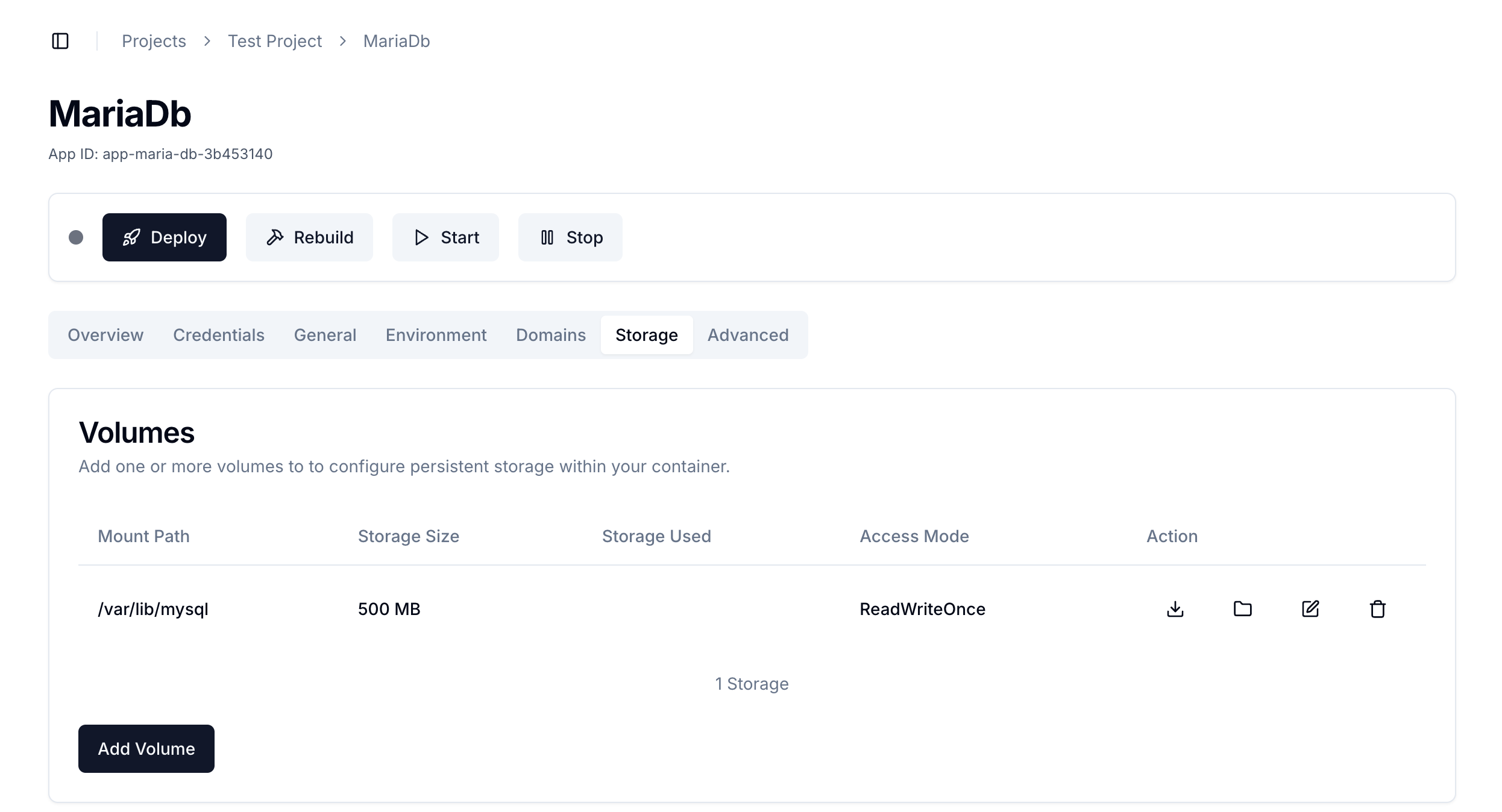
Navigate to App Settings: Select the app you want to configure a backup for by clicking the application name.
-
Select the Storage Tab: Select the
Storagetab in the application settings.
- Configure Backup Schedule:
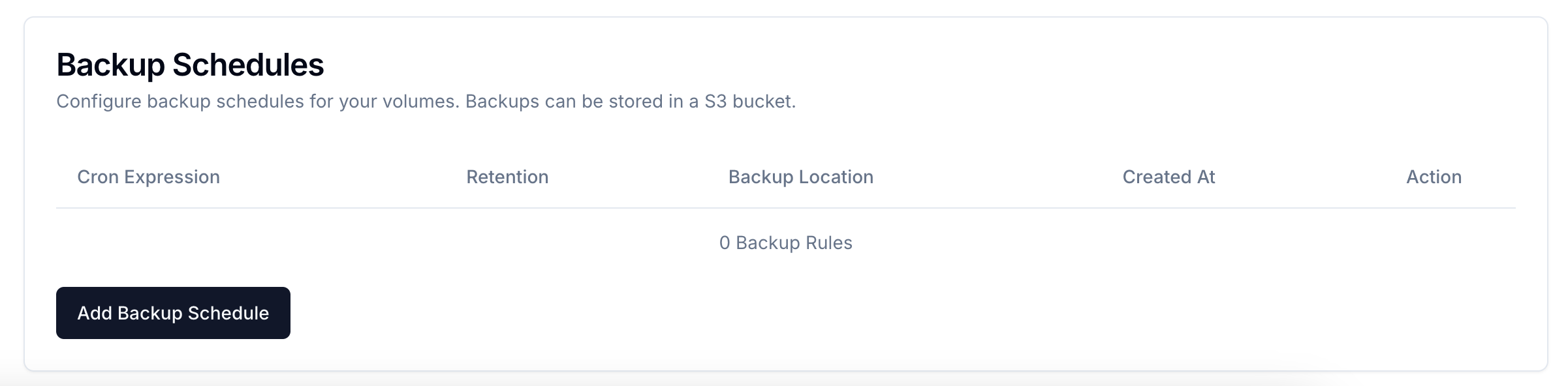
Scroll to the "Backup Schedules" section and click the
Add Backup ScheduleButton.
- Define Backup Schedule:
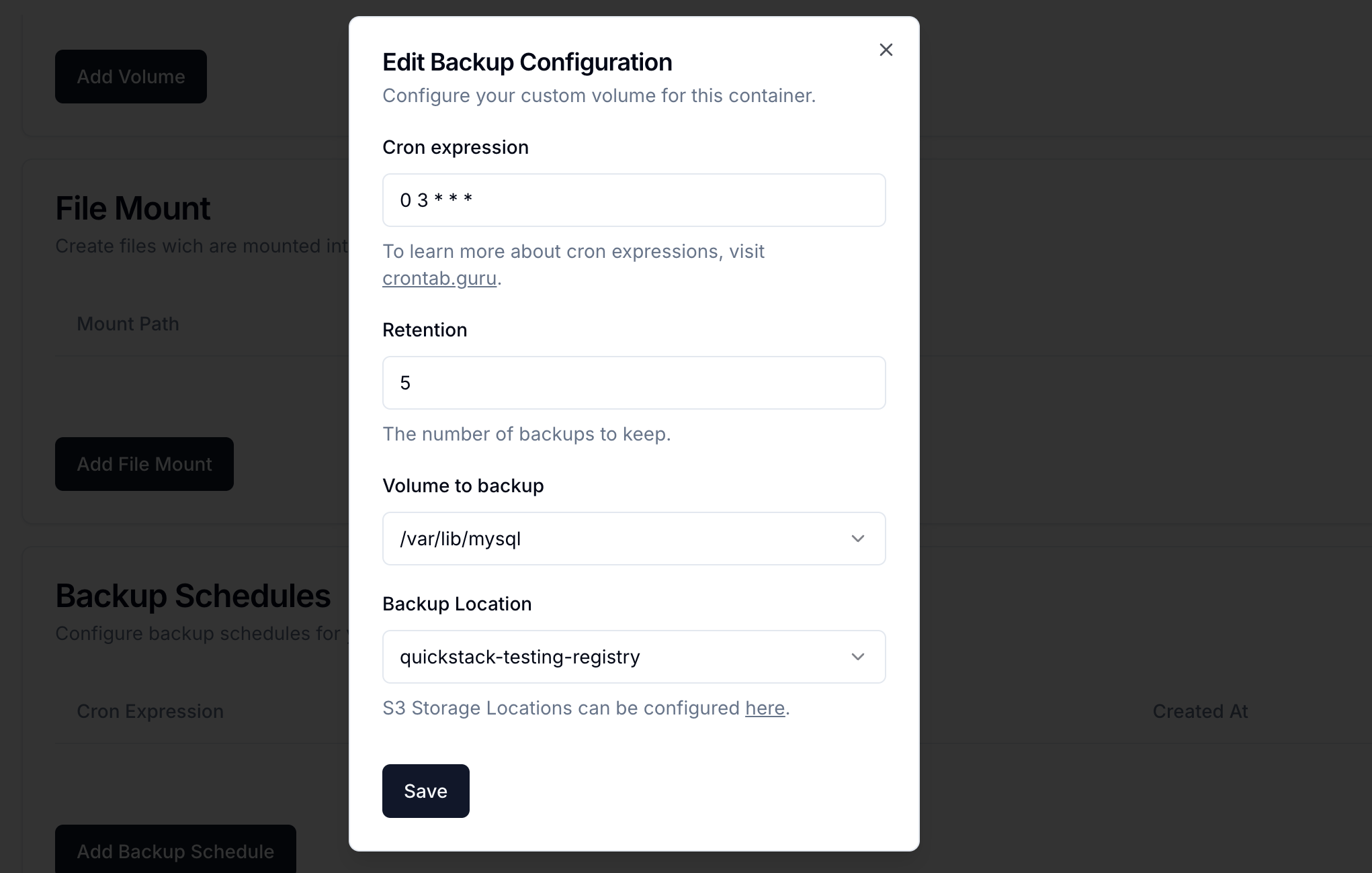
Enter the information to configure the backup schedule.
- Cron Expression: Define when the backup should be created. For example,
0 0 * * *creates a backup every day at midnight. Use crontab.guru to generate cron expressions. - Retention: Define the amount of backups you want to retain. If there are more backups, the oldest will be deleted.
- Volume to backup: Select the volume you want to backup.
- Backup Location: Choose an S3 Target from the S3 Targets list.
- Cron Expression: Define when the backup should be created. For example,
- Save Backup Schedule
To save the configuration press the
Savebutton.
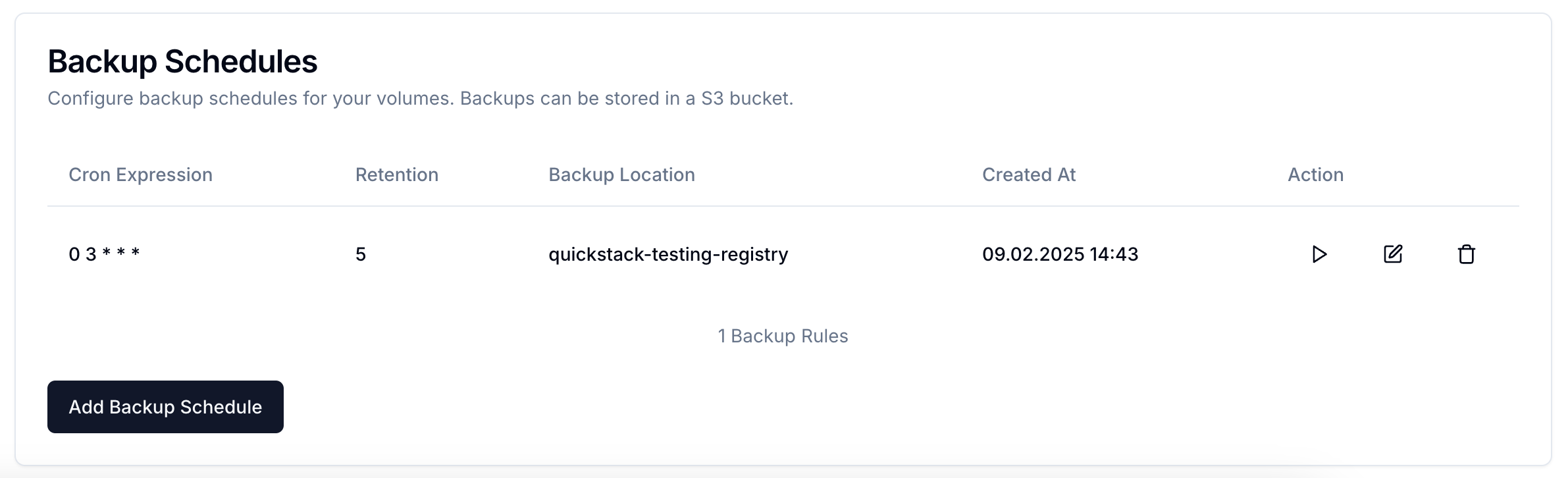
To test the backup schedule, you can manually trigger a backup by clicking the play-icon button in the backup schedule table.
Database Backups
QuickStack provides specialized backup jobs for managed databases (MariaDB, PostgreSQL, MongoDB) that create consistent database dumps.
-
Navigate to Database Settings: Go to your project and select the database you want to backup.
-
Configure Database Backup: Navigate to the Storage tab and click Add Backup Schedule.
-
Backup Configuration:
- Cron Expression: Define the backup schedule (e.g.,
0 2 * * *for daily at 2 AM). - Retention: Number of backups to keep before deleting old ones.
- Backup Location: Select your configured S3 target.
- Cron Expression: Define the backup schedule (e.g.,
- MariaDB/PostgreSQL: Uses native dump tools (
mariadb-dump,pg_dump) for consistent backups - MongoDB: Uses
mongodumpwith archive format - Backups are compressed using
tar.gz
Database backup jobs create a separate backup container that connects to your database and creates a dump. The backup process:
- Spawns a dedicated backup pod in the project namespace
- Connects to the database using internal networking
- Creates a compressed database dump
- Uploads the dump to S3 storage
- Cleans up the backup pod after completion
Managing Backups
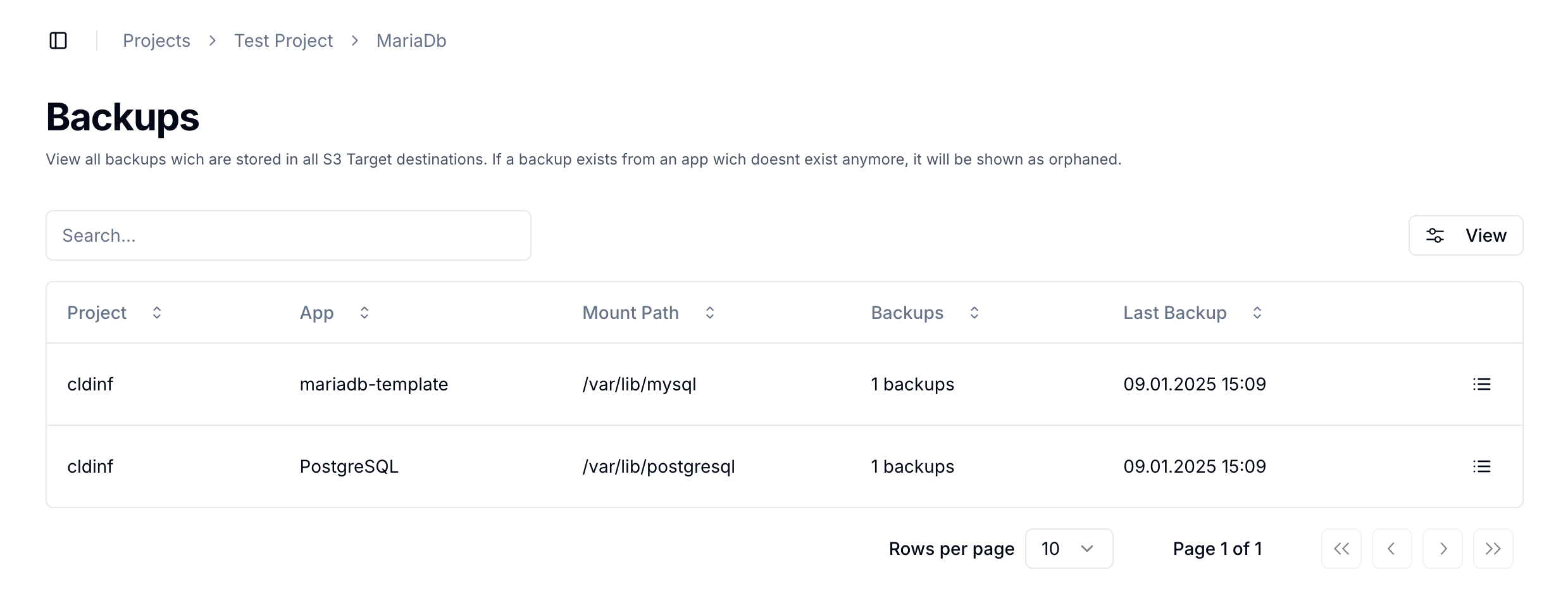
You can view and manage your current backups from within QuickStack:
-
Navigate to Backups: Navigate to the "Backups" page in the main QuickStack navigation.
-
View Backup Information: You'll find a comprehensive overview of all your backups including:
- Backup status and last run time
- Size and storage location
- Success/failure indicators
- Manual trigger options
System Backups
QuickStack also supports uploading and restoring complete QuickStack system configuration for disaster recovery. For more information, refer to the System Backup Guide.
Troubleshooting
- Backup Schedules not working: Check the cron expression and the server time.
- Backups Fail to Upload: Ensure that the provided s3 target is working and QuickStack is correctly configured to access the bucket. You should also verify that there is enough space available in your object storage bucket.