Project Canvas & App Drawer
Use the Project Canvas to see apps, databases, and connections at a glance, and create, configure, deploy, and monitor every app from its details drawer.
The Project Canvas is the main view for creating, configuring, and operating on apps. Every project opens in the Project Canvas, which offers two views:
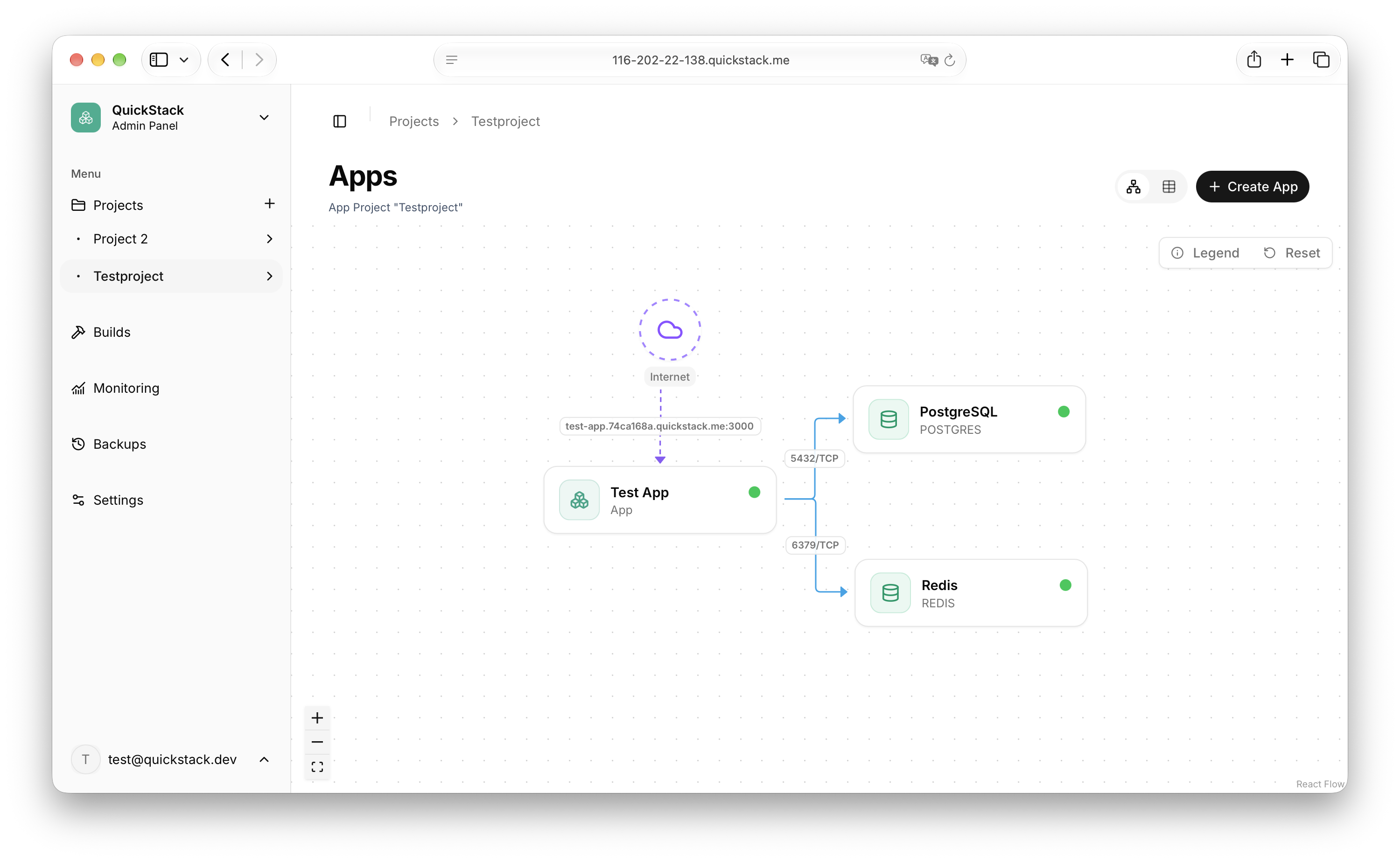
- Network graph — a visual map of the apps, databases, Agent Sandboxes, and the connections between them.
- Table — a simple list of the project's apps.
The Project Canvas is the default and the fastest way to inspect and operate on an app without leaving the project.
Create and connect apps
- Click Create App, or right-click an empty spot on the canvas, and choose Empty App, Template, or Database.
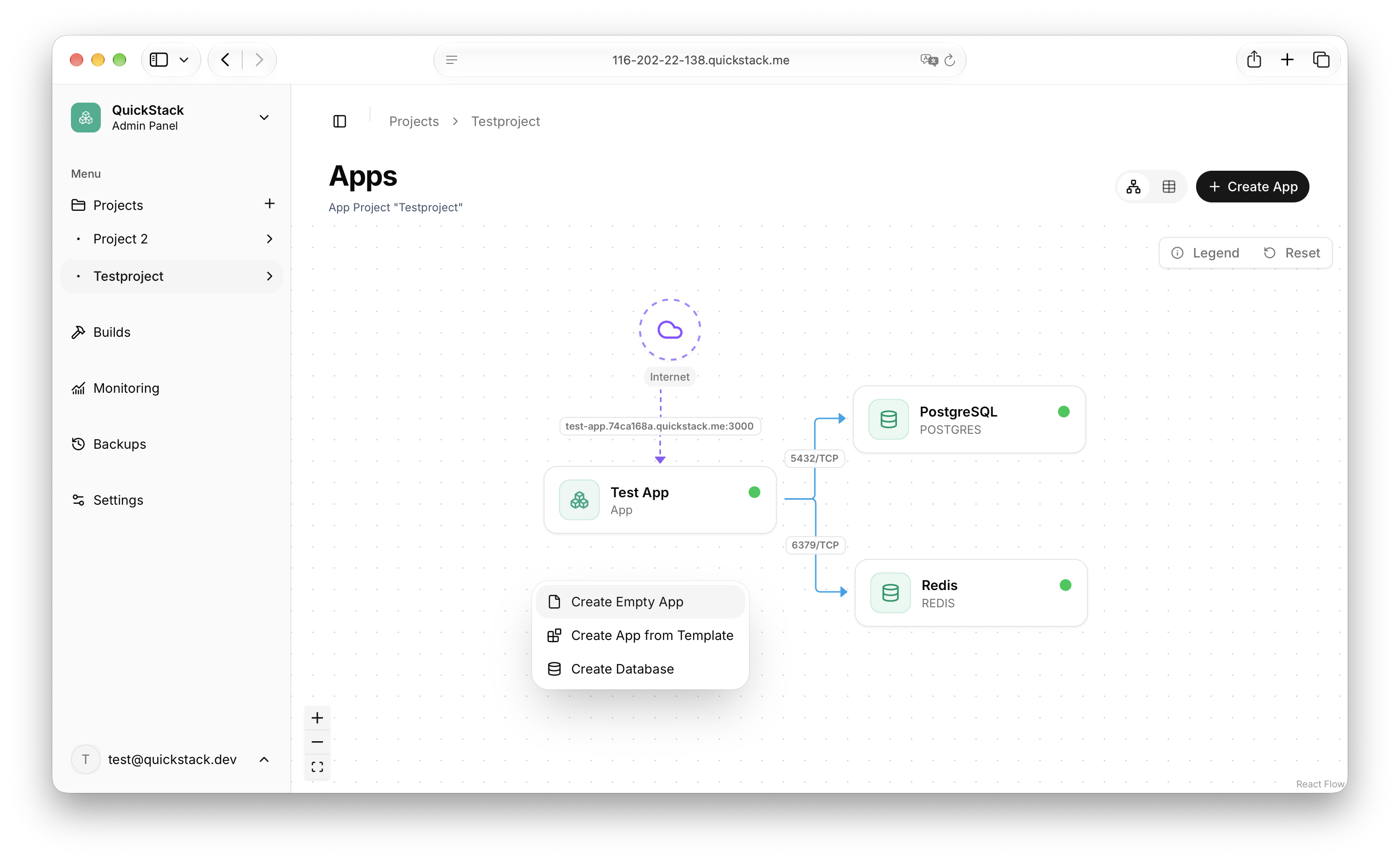
- Give the app a name. It appears as a node and its details drawer opens.
- If the app has no source yet, click Connect App Source in the drawer and follow the source wizard. The source, branch, and build method live under Settings → Source. To start from a template instead, see App & Database Templates.
- Review and adjust the app's settings in the drawer, then click Deploy in the drawer header.
Everything happens in the drawer Creating, editing, deploying, and monitoring an app all happen from the Project Canvas and its drawer.
Read the canvas
| Element | Meaning |
|---|---|
| App node | An application, with its live build and pod status |
| Database node | A managed database (PostgreSQL, MariaDB, MongoDB, Redis) |
| Agent node | An Agent Sandbox (see Agent Sandbox) |
| Internet node | Access to the public internet |
| Solid edge | A complete, active connection |
| Dashed edge | An incomplete or cross-project connection |
| Arrowheads | The allowed direction of traffic |
The Legend popover explains the node states (Complete, Incomplete, Other project, Internet).
Drag nodes to reposition them — the layout is saved per project. Click Reset to restore the automatic layout.
See Networking & Policies for how to create and remove connections.
Open the app drawer
Click any app, database, or Agent Sandbox node to open the details drawer on the right. The drawer is the main place to inspect and configure a workload.
- Selecting a node highlights its connections and dims the rest of the canvas.
- The drawer can be deep-linked with
?drawerAppId=<id>&drawerTab=<tab>.
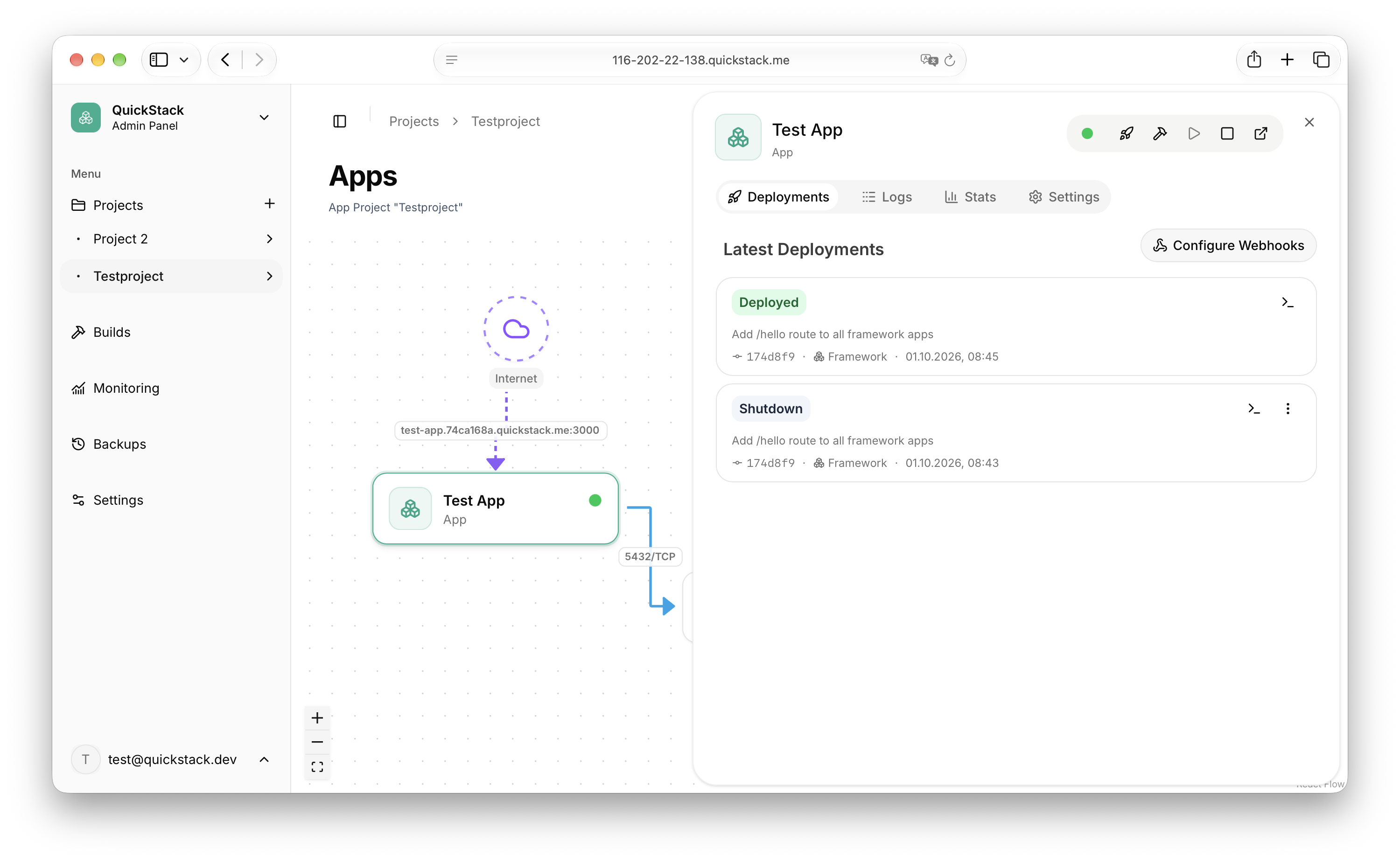
If an app has no source connected yet, the drawer shows the Connect App Source flow instead of the tabs and actions.
Tabs
| Tab | What it shows |
|---|---|
| Deployments | Latest deployments, build status, logs, rollback, and webhook settings (default tab) |
| DB Access | Database credentials and DB tools — databases only |
| Logs | Live application logs and the interactive terminal |
| Stats | CPU and memory usage for the running pods |
| Backups | Backup history for the app's volume schedules — only if the app has volumes |
| Settings | Source, deployment, environment, networking, storage, and advanced configuration |
Deployments
The Deployments tab lists recent deployments as cards. Each card shows a status badge (for example Building, Deploying, Deployed, Error) and, for Git apps, the commit message and short hash.
- Click Open Terminal on a card to stream its build and deployment logs.
- While a build runs, use Stop Build to cancel it.
- Use Rollback to this deployment to redeploy an earlier commit (Git apps only). Rollbacks are marked with a purple Rollback badge.
Click Configure Webhooks to open the webhook settings for the app. See Webhooks & auto-deploy.
DB Access (databases only)
For managed databases, this tab provides:
- Database Access — one-click launchers for DbGate, phpMyAdmin (MySQL/MariaDB), and pgAdmin (PostgreSQL).
- Database Credentials — copyable Database Name, Username, Password, Internal Hostname, Internal Port, and Internal Connection URL.
See Database tools for details.
Logs and Stats
- Logs streams the running container logs with pod selection, a fullscreen mode, and an interactive Terminal (write access required).
- Stats shows live CPU and memory usage, refreshed every 10 seconds.
Backups
If the app has volumes, the Backups tab lists its backup schedules. Click a schedule to open a nested drawer with its individual backups (Created and Size), or configure a new schedule. See Volume Backups.
Settings
The Settings tab groups all app configuration into sections:
| Section | What you can change |
|---|---|
| Source | Git/container source, branch, credentials, build method, Dockerfile path, framework configuration |
| Deployment | Container Rate Limits (replicas, CPU, memory) and advanced container settings |
| Environment | Environment variables and build arguments (nested Environment variables drawer) |
| Networking | Domains, node ports, and network policies (nested Network policies drawer) |
| Storage | Volumes, shared volumes, and file mounts |
| Advanced | Basic auth and health checks (nested Health checks drawer) |
Changes are saved immediately but only take effect after you click Deploy.
Status and lifecycle actions
The drawer header shows the live status of the workload and the actions you can perform:
| Action | Description |
|---|---|
| Deploy | Build (for Git sources) and apply the current configuration |
| Rebuild | Rebuild the current Git commit — Git-source apps only |
| Start | Start a stopped app by restoring its replica count |
| Stop | Stop the app by scaling its replicas to zero |
| Open domain | Open the app in a new browser tab; if it has several domains, pick one from the list |
Actions are only available if you have write access to the app, and each button is enabled only when the current status allows it.
Right-click menus
App node
Right-click an app node to act without opening the drawer:
- Deploy — Deploy, Rebuild, Start, Stop
- View Deployments, View Logs, View Backups, View Settings
- Enable / Disable Egress Internet Access
- Delete App — permanently deletes the app and its data
Connection
Right-click a connection to Delete connection, which removes the network policy rules on both sides.