Two-Factor Authentication (2FA)
Two-factor authentication adds an extra layer of security to your QuickStack account. When enabled, you'll need both your password and a time-based code from an authenticator app to log in.
Overview
QuickStack supports TOTP (Time-based One-Time Password) authentication, which works with popular authenticator apps like:
- Bitwarden
- Google Authenticator
- Microsoft Authenticator
- Authy
- 1Password
- Any other TOTP-compatible app
Enabling 2FA
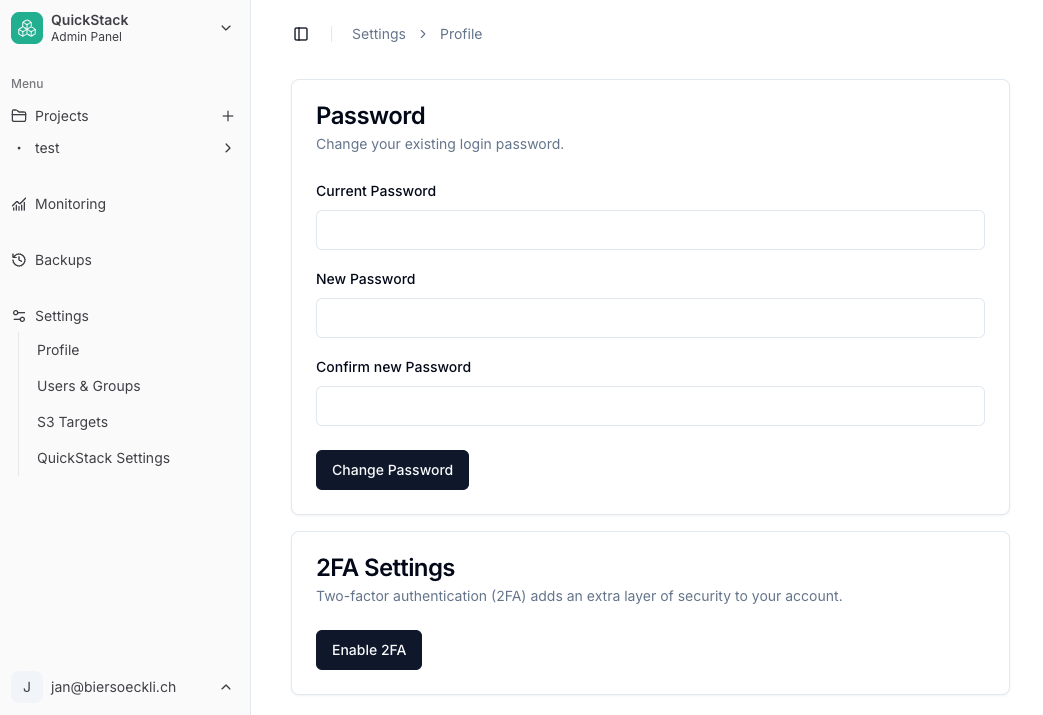
Step 1: Access Profile Settings
- Click on Settings in the sidebar.
- Select Profile from the settings menu.
Step 2: Enable 2FA
- Locate the 2FA Settings card.
- Click the Enable 2FA button.
Step 3: Scan QR Code
- A dialog will appear with a QR code.
- Open your authenticator app on your phone.
- Scan the QR code with your authenticator app.
- The app will add a new entry for QuickStack.
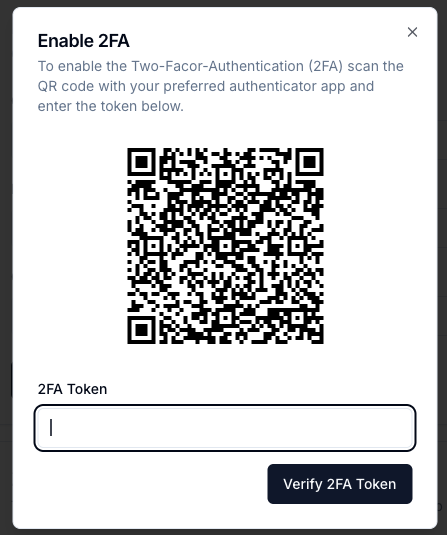
Step 4: Verify Setup
- Enter the 6-digit code from your authenticator app.
- Click Verify to confirm the setup.
- 2FA is now enabled for your account.
Managing 2FA
Replacing 2FA Configuration
If you need to switch to a new device or authenticator app:
- Go to Settings → Profile.
- Click Replace current 2FA Config.
- Scan the new QR code with your new device/app.
- Verify with a code from the new setup.
- The old configuration is automatically invalidated.
Disabling 2FA
To disable two-factor authentication:
- Go to Settings → Profile.
- Click Deactivate 2FA.
- Confirm the action.
Security Warning
Disabling 2FA reduces your account security. Only disable it temporarily if necessary, and re-enable it as soon as possible.
Security Recommendations
- Don't share your QR code or secret key with anyone
- Enable 2FA for all admin accounts in production environments
Troubleshooting
Lost Authenticator App / Lost access to 2FA
- Reset the admin password (see Password Reset) to regain access and set up 2FA again with a new device.