User Management
QuickStack provides a comprehensive user management system that allows administrators to control who can access the platform and what actions they can perform. This guide covers creating users, managing groups, and configuring granular permissions.
Overview
The user management system in QuickStack consists of:
- Users: Individual accounts that can log into QuickStack
- Groups: Collections of permissions that can be assigned to users
- Permissions: Granular access controls for projects and applications
Accessing User Management
-
Navigate to Settings: Click on Settings in the sidebar.
-
Select Users & Groups: Click on Users & Groups to access the user management interface.
Managing Users
Creating a New User
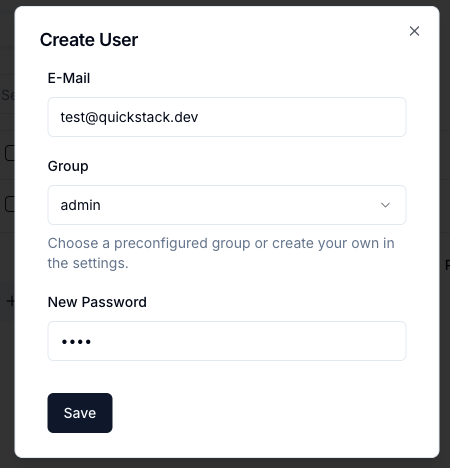
- Click the Create User button.
- Enter the user's details:
- Email: The user's email address (used for login)
- Password: A secure password for the account
- Group: Select a group to assign permissions
- Click Save to create the user.
Editing a User
- Find the user in the users table.
- Click the Edit (pencil) icon.
- Modify the email or group assignment.
- Click Save.
Deleting a User
- Find the user in the users table.
- Click the Delete (trash) icon.
- Confirm the deletion.
You cannot delete your own admin account while logged in. This prevents accidental lockout.
Managing Groups
Groups define what users can do within QuickStack. Switch to the Groups tab to manage them.
Default Admin Group
QuickStack includes a built-in Admin group with full access to all features. This group cannot be deleted or modified.
Creating a New Group
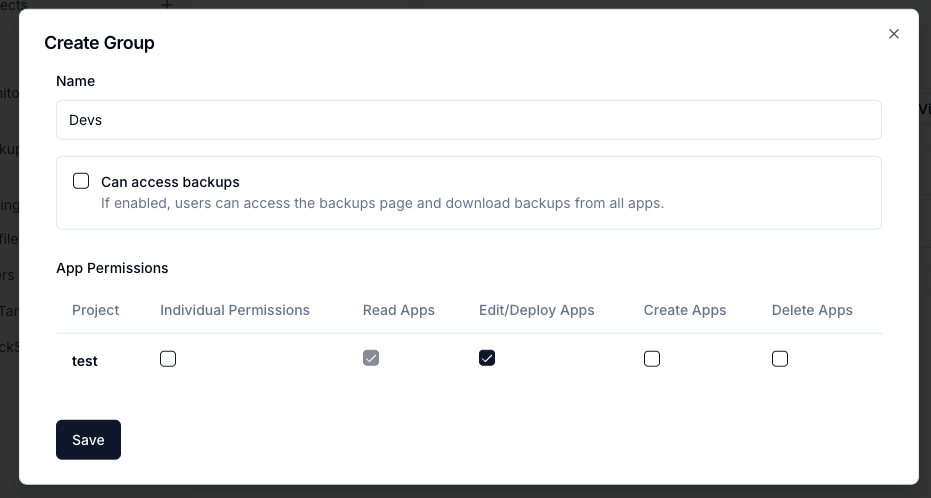
- Click the Create Group button.
- Enter a Group Name (e.g., "Developers", "Viewers").
- Configure project permissions (see below).
- Click Save.
When you delete a group, users assigned to that group will have no permissions until reassigned to a new group. They will not be able to access any QuickStack features.
Configuring Permissions
Groups can be configured with granular permissions per project and even per application.
Project-Level Permissions
For each project, you can grant:
| Permission | Description |
|---|---|
| Read Apps | View applications and their configurations |
| Write Apps | Modify application settings, deploy applications |
| Create Apps | Create new applications in the project |
| Delete Apps | Remove applications from the project |
Per-App Permissions
For even finer control, enable Set permissions per App for a project. This allows you to:
- Grant read-only access to specific applications
- Allow write access to certain apps while restricting others
- Create specialized access patterns for different team roles
Permission Inheritance
- No project permission = No access to any apps in that project
- Project-level permission = Same permission for all apps
- Per-app permission = Override project-level settings for specific apps