Monitoring & Debugging
QuickStack provides powerful built-in tools to help you monitor the health of your applications and debug issues in real-time. You can access live logs, view real-time status updates, and even open an interactive shell session directly from your browser.
Application Status Indicators
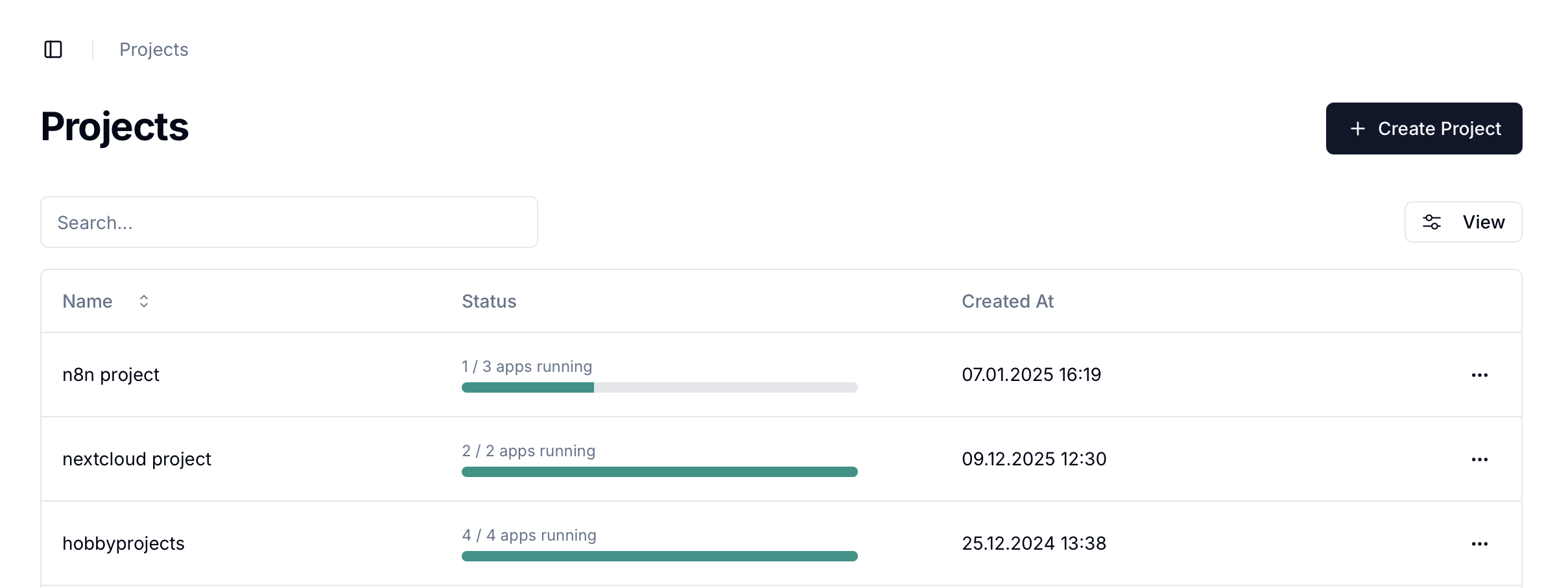
QuickStack displays real-time status information for all your applications. Status updates appear immediately when pod states change, without requiring page refreshes. The status of your applications are visible in the projects overview, project detail or app detail pages.
Live Application Logs
The Logs viewer allows you to see the standard output (stdout) and standard error (stderr) streams from your running containers. This is usually the first place to look when troubleshooting an application.
Accessing Logs
- Navigate to the App:
- Open your project dashboard and select the application.
- Overview Tab:
- The logs are displayed by default on the Overview tab.
- Select Pod:
- If your application is running multiple replicas (pods), use the dropdown menu to select which pod's logs you want to view.
- The status of the pod (e.g.,
Running,Pending) is also displayed here.

Interactive Terminal
For more advanced debugging, QuickStack offers an interactive Terminal that connects directly to your running container. This allows you to execute commands, check file systems, and verify network connectivity from inside the app's environment.
Opening a Terminal Session
- Navigate to the App:
- Open your project dashboard and select the application.
- Overview Tab:
- Locate the Logs card.
- Launch Terminal:
- Click the Terminal button next to the pod selector.
- Note: This button is only visible if you have Write permissions for the application.

Using the Terminal
Once the terminal dialog opens, you will be presented with options to start a shell session:
- Start sh: Launches a standard Bourne shell (
/bin/sh). This is available on almost all Linux containers (including Alpine). - Start bash: Launches the Bourne Again Shell (
/bin/bash). Use this if your container image includes bash for a more feature-rich experience.
After clicking one of the buttons, the terminal window will connect, and you can start typing commands just like you would in a local terminal.

Disconnecting
To end your session, click the Disconnect Session button or simply close the dialog window.
Limitations
- Permissions: The Terminal feature requires Write access to the project. Read-only users cannot execute commands in containers.
- Container State: You can only connect to containers that are in a
Runningstate. If a container is crashing or restarting loop, you may not be able to establish a connection. - Shell Availability: The
bashoption requires thebashbinary to be installed in your container image. If it fails, try usingshinstead.