Network Policies
Network policies in QuickStack allow you to control traffic flow between applications within a project and regulate access to external services. This feature enhances security by implementing fine-grained network segmentation at the Kubernetes level.
Overview
By default, all applications within a QuickStack project can communicate with each other and access external services. Network policies enable you to:
- Restrict which applications can communicate with each other
- Control outbound internet access
- Isolate sensitive applications
QuickStack network policies are implemented using Kubernetes NetworkPolicy resources. k3s uses kube-router as the network plugin to enforce these policies.
Network Policy Types
QuickStack provides several pre-configured network policy templates:
Allow All (Default)
- Ingress: Allows traffic from all sources within the project namespace and the internet (via domain)
- Egress: Allows all outbound traffic to other apps in the project and internet
- Use case: Development environments, applications that need unrestricted access
Internet Only
- Ingress: Blocks traffic from other project applications. Allows traffic from the internet (via domain)
- Egress: Allows only internet access (blocks internal app-to-app communication)
- Use case: Applications that only need to reach external APIs/services
Project Apps Only
- Ingress: Allows traffic from all sources within the project
- Egress: Allows only traffic to other project applications (blocks internet access)
- Use case: Internal services, databases, backend APIs
Deny All
- Ingress: Blocks all incoming traffic
- Egress: Blocks all outbound traffic
- Use case: Highly sensitive applications, testing isolation, databases (for egress)
Configuring Network Policies
Enabling Network Policies for an Application
-
Navigate to Your App: Open your project and select the application you want to configure.
-
Access Network Settings: Click on the Advanced tab.
-
Enable Network Policy:
- Toggle Use Network Policy to enable network policy management.
- Select a policy type from the dropdown menu.
-
Save and Redeploy:
- Click Save to apply the configuration.
- Redeploy the application for changes to take effect.
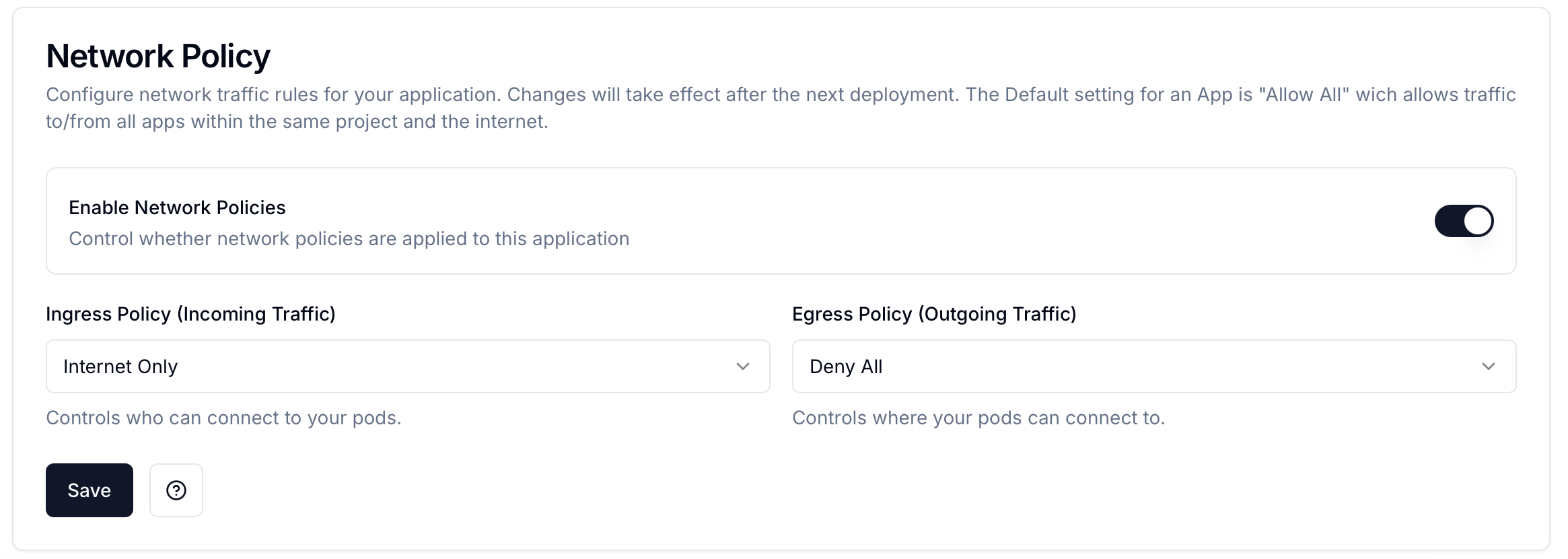
Network policy changes require a redeployment of the application to be applied. Existing connections may be terminated when policies are updated.
Tipp
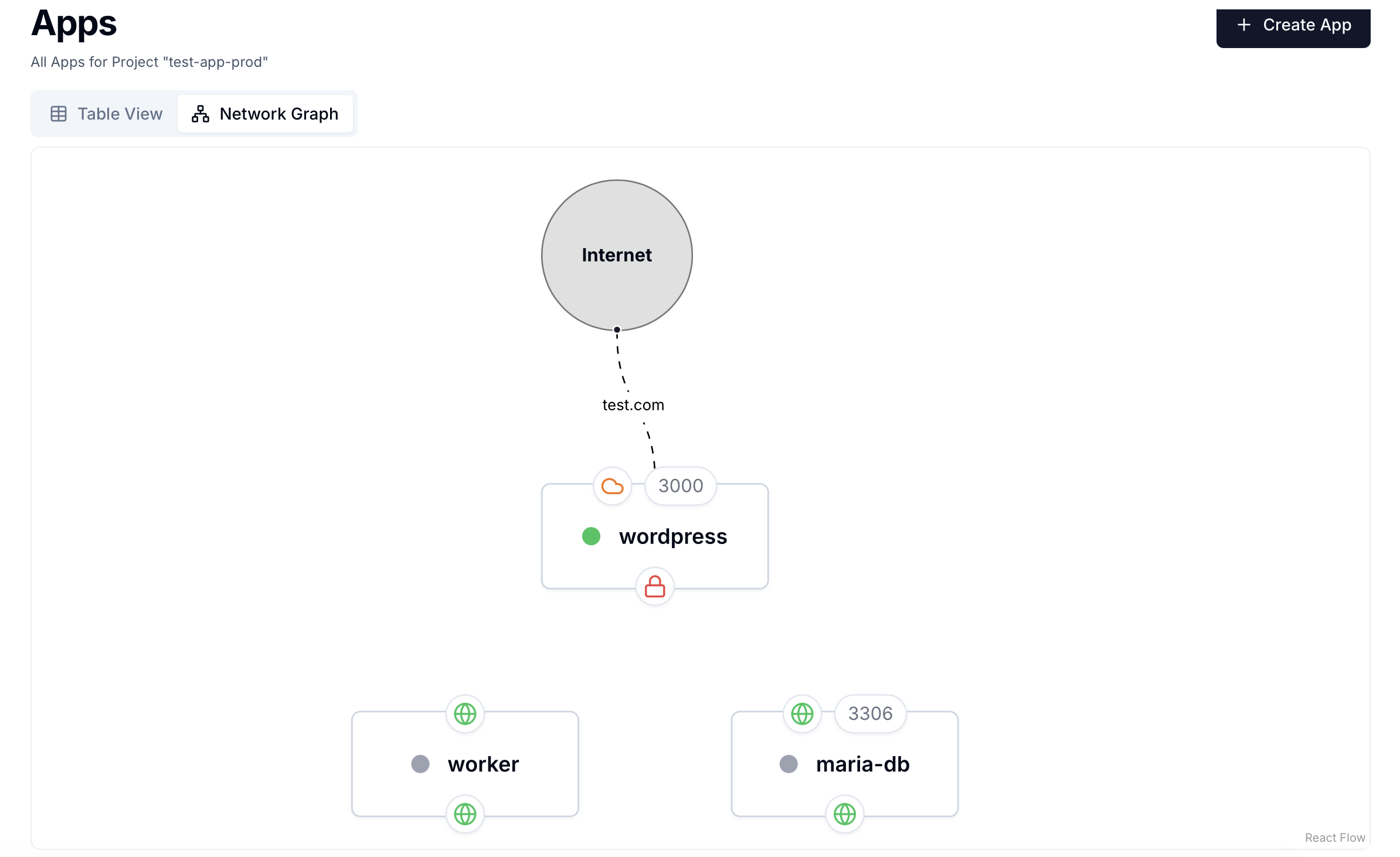
To get a better overview of the network policies applied for a project, you can open the project overview "Network Graph" tab. Here you can see all apps and their network connections visually represented.